

Add Interviews/Assessments
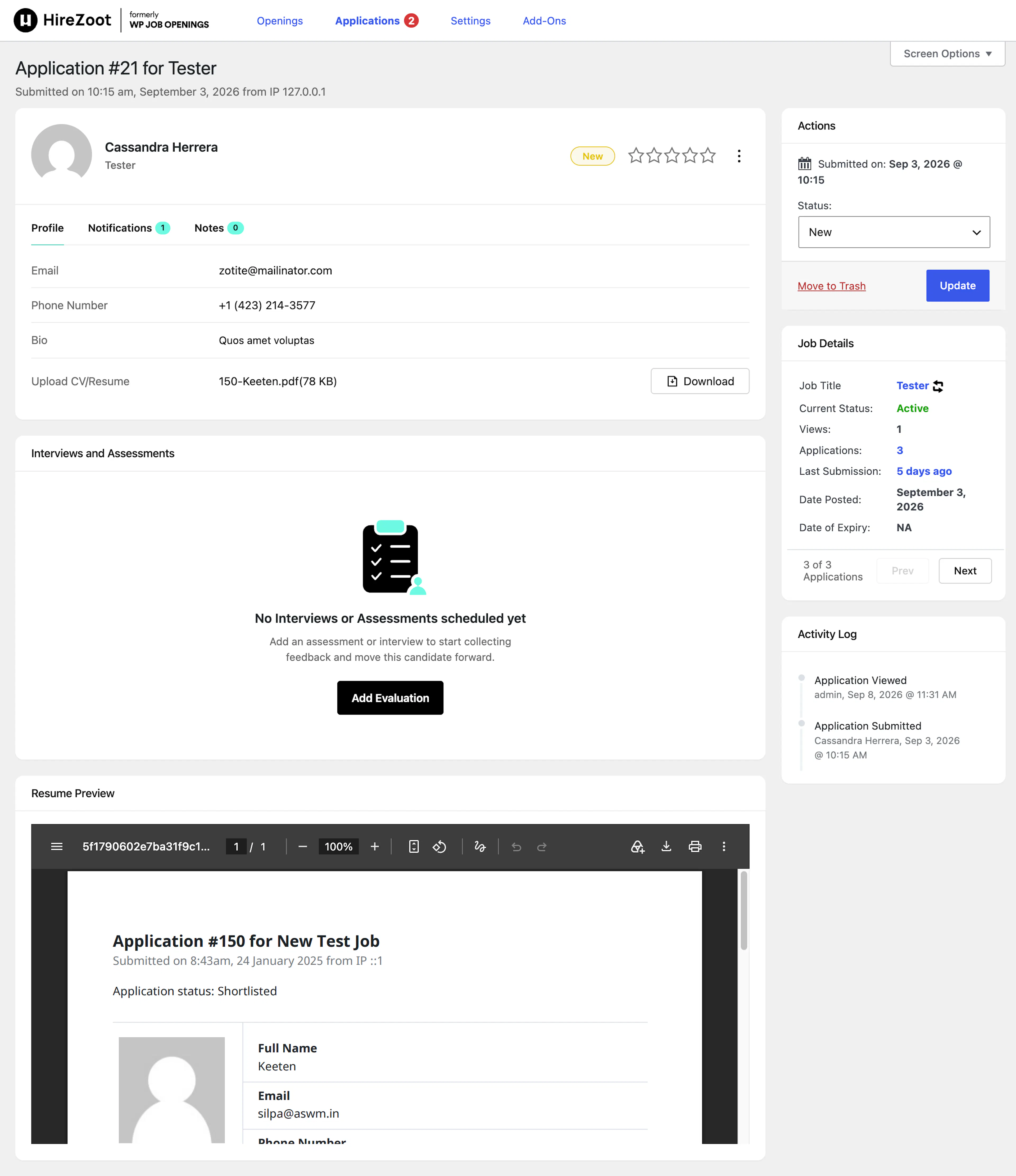
Found on the Job Application edit screen, this meta box is where interviews and assessments are scheduled and tracked for an individual candidate.
- Empty State: When no evaluations exist yet, recruitment managers see "No Interviews or Assessments scheduled yet" with an Add Evaluation button. A Hiring Panelist with no assignment on this candidate instead sees "You haven't been assigned to any interviews or assessments for this candidate yet." with no button.
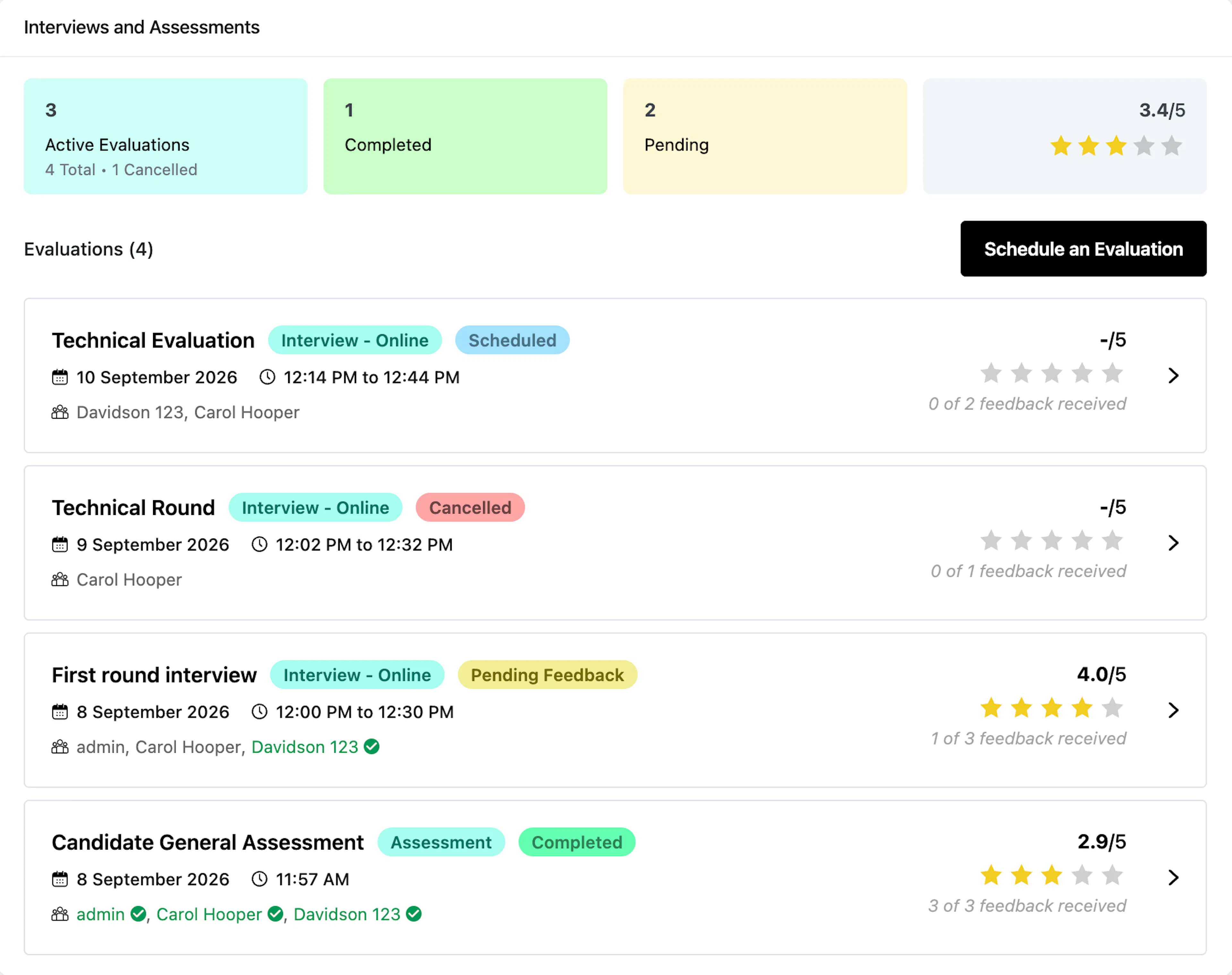
- Summary Tiles: Once evaluations exist, a summary strip shows Evaluations (total count), Completed, Pending, and an average rating (e.g.
4.2/5with stars). - Evaluations List: Each evaluation row shows its title, type badge (Interview/Assessment), status pill, date, time/duration, the assigned evaluators (with a checkmark for anyone who has already submitted feedback), and a rating score with a caption like "2 of 3 feedback received."
- Schedule an Evaluation: Button available to recruitment managers to add another evaluation for this candidate.
Scheduling an Interview or Assessment
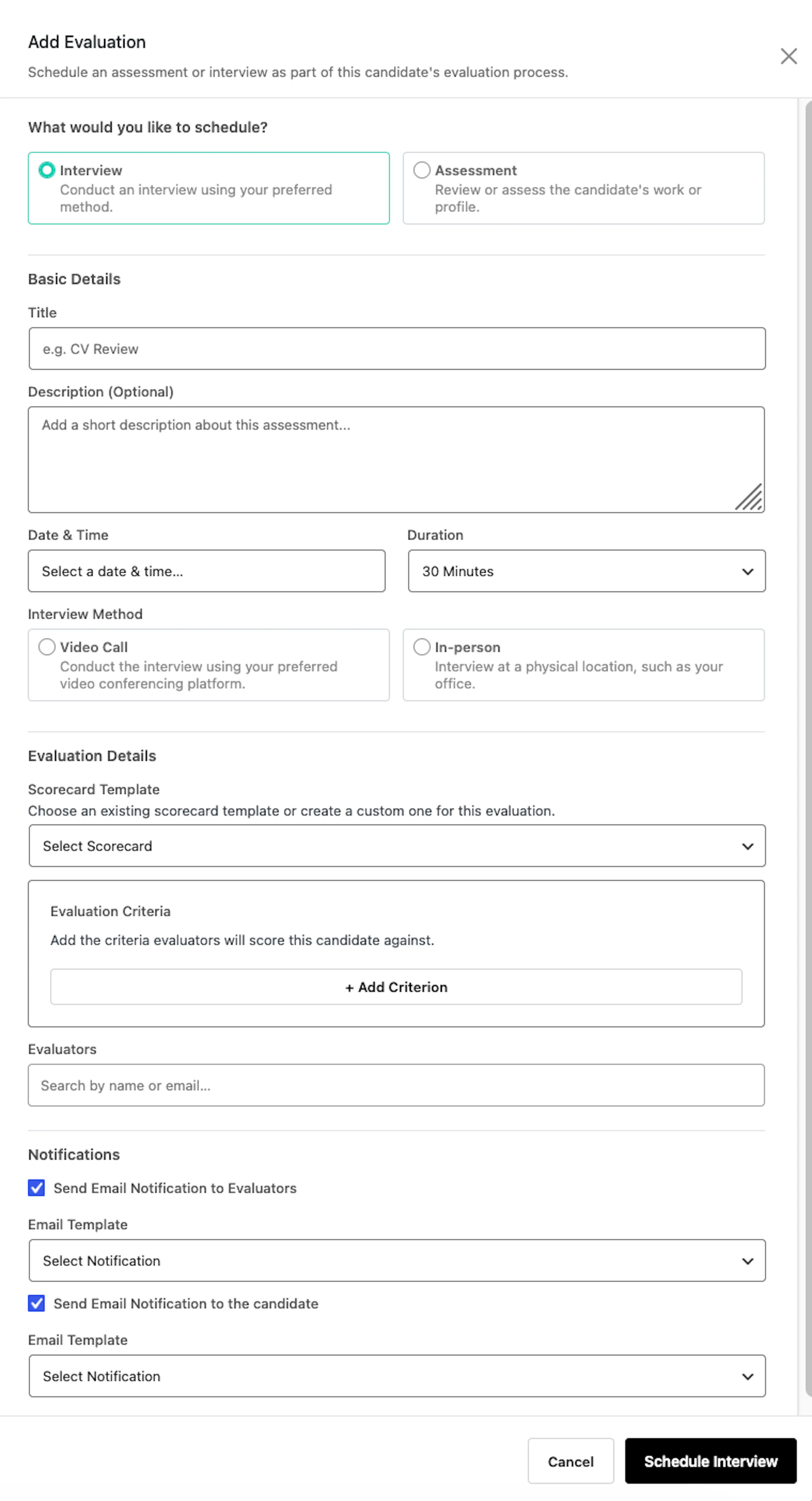
Clicking Add Evaluation opens a slide-out panel to schedule a new interview or assessment.
- What would you like to schedule?: Choose Interview ("Conduct an interview using your preferred method") or Assessment ("Review or assess the candidate's work or profile").
- Title / Description: Basic details identifying the evaluation.
- Date & Time: When the evaluation is scheduled.
- Duration (Interview only): 15, 30, 45, or 60 minutes.
- Interview Method (Interview only): Video Call or In-person.
- For Video Call: Platform (Google Meet, Zoom, or Microsoft Teams), Meeting URL, and optional Joining Instructions.
- For In-person: Interview Location.
- Scorecard Template: Select an existing evaluation form, or build custom criteria for this evaluation only.
- Evaluation Criteria: Add, duplicate, or remove the specific criteria evaluators will score the candidate against.
- Evaluators: Search and select the hiring panelists responsible for this evaluation.
- Send Email Notification to Evaluators / to the Candidate: Optionally notify either party, choosing a notification template and customizing the message before sending.
Click Schedule Interview (or Save Changes when editing) to confirm.
Editing an Evaluation
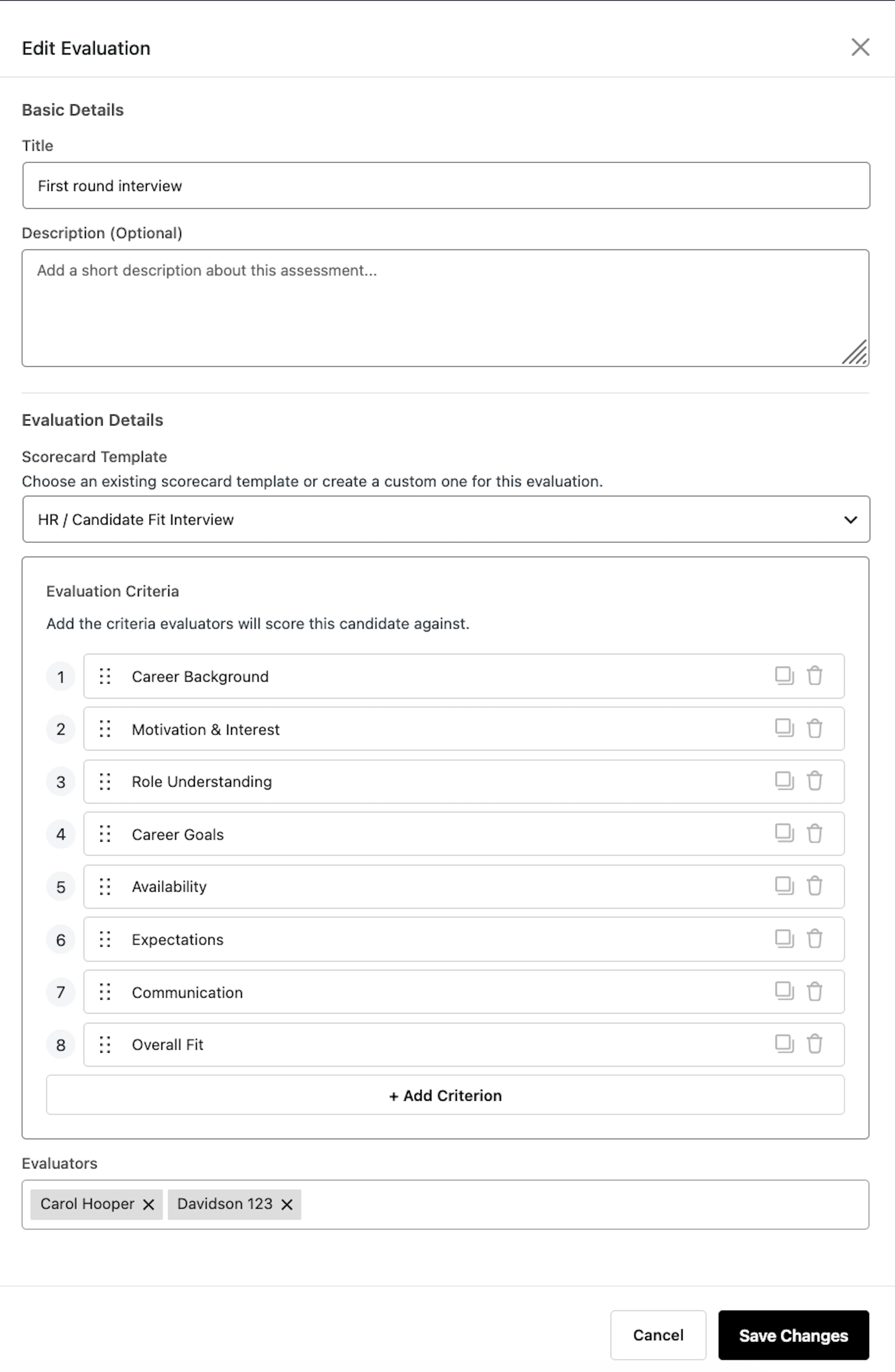
Opened via Edit Evaluation from an evaluation's actions menu. Lets you update the details, scorecard, and evaluators for an existing interview or assessment.
- Title / Description: Update the evaluation's basic details.
- Scorecard Template: Switch to a different evaluation form template, which replaces the current criteria list with that template's criteria.
- Evaluation Criteria: Add, edit, duplicate, or remove individual criteria. Every visible criterion row must have a name — a blank row blocks saving rather than being silently dropped.
- Evaluators: Add or remove assigned hiring panelists. The evaluator search list refreshes immediately as you add or remove people, so you won't see stale suggestions.
Click Save Changes to confirm.
Notes:
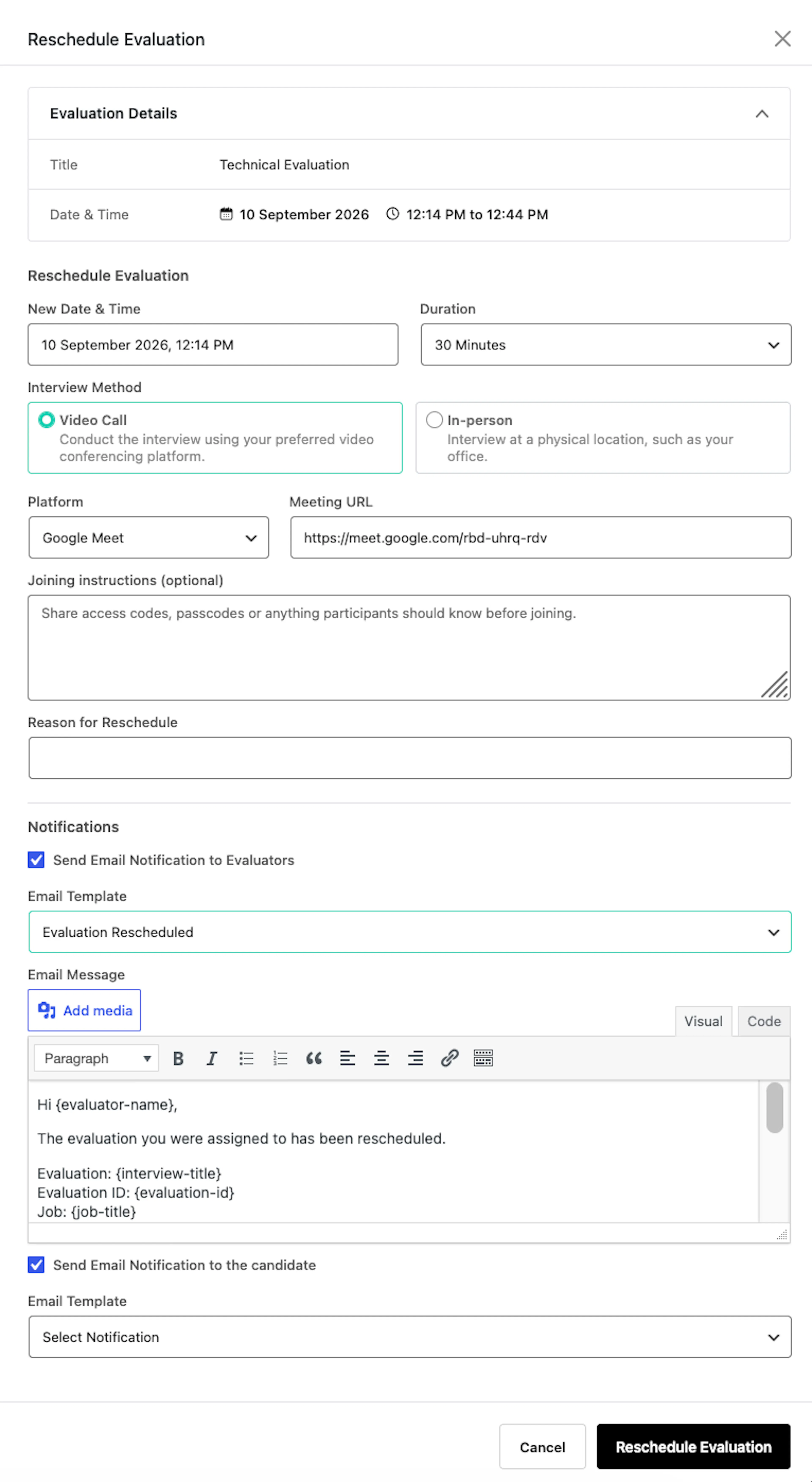
- Date, time, duration, interview method, and location/meeting link cannot be changed here — use Reschedule instead, which also records a reason for the change.
- Notification settings are not shown when editing — any notifications already configured for this evaluation carry forward unchanged; they aren't re-sent on a plain edit.
- A scorecard selection alone isn't enough to save — the criteria list itself must have at least one named criterion. If you pick a template and then delete all of its criteria, you'll be prompted to add one back or choose a different template.
Rescheduling an Evaluation
Cancelling an Evaluation
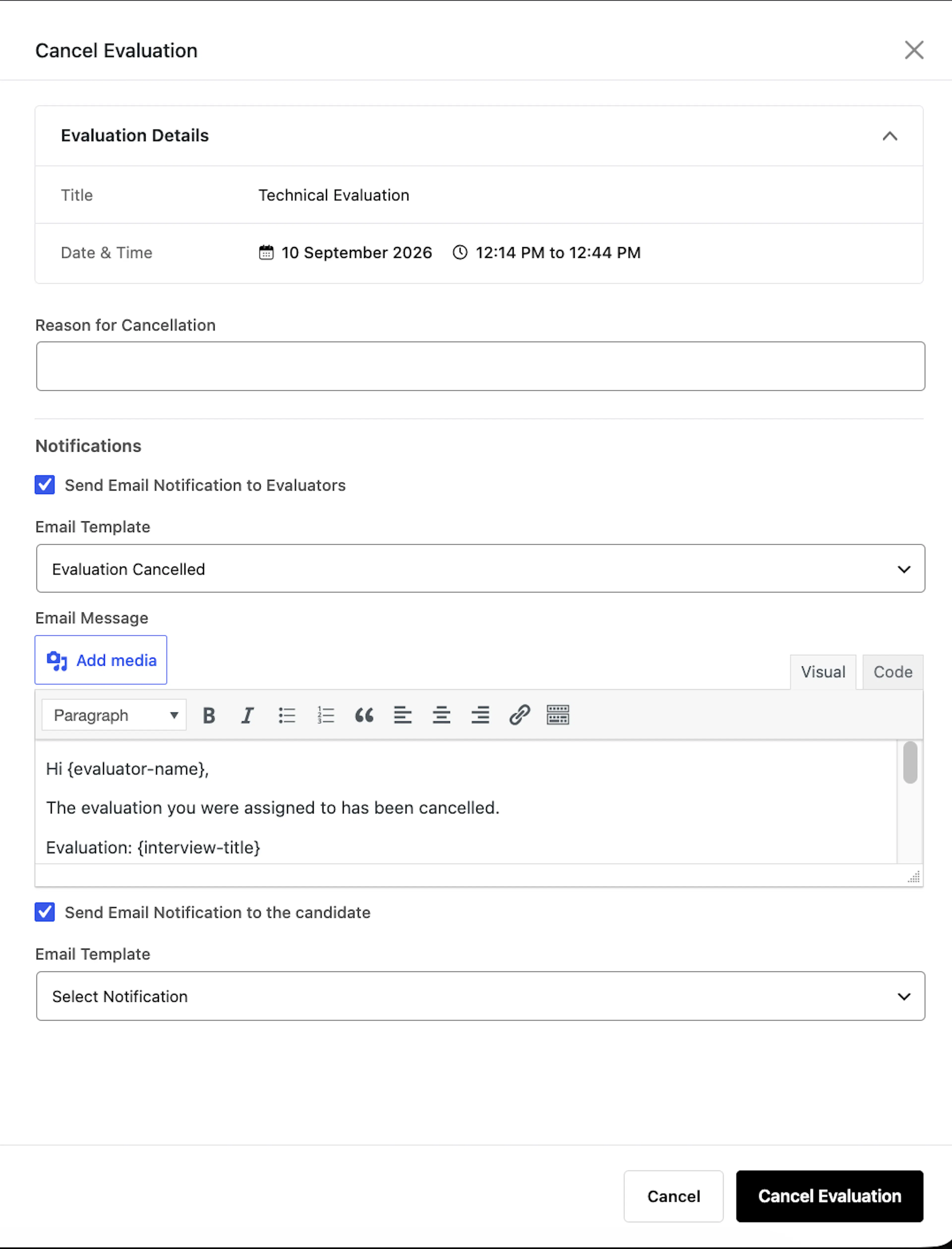
- Reason for Cancellation: Required — explain why the evaluation is being cancelled.
- Notifications: Optionally notify evaluators and/or the candidate.
Click Cancel Evaluation to confirm.
Was this page helpful?