

Advanced Schema Management
Enrich HireZoot JobPosting schema with organization, location, salary, education, and experience details for better job search visibility.
Advanced schema management
Advanced schema management is a Pro Pack feature that adds richer JobPosting structured data to every HireZoot job page. Google for Jobs and other job search engines use this data to understand and display your openings.
The free plugin already outputs basic JobPosting schema with the following details:
- Job title
- Job description
- Date posted
- Expiry date
- Company name
- Job type and location from the job specifications
Advanced schema management adds organization, workplace, applicant eligibility, compensation, education, experience, and opening-count details. Configure company-wide defaults once, then adjust them for individual jobs when needed.
Advanced schema management is off by default. Turning it off hides the additional fields and restores basic schema output, but HireZoot retains your saved global and per-job values for when you enable it again.
Enable advanced schema management
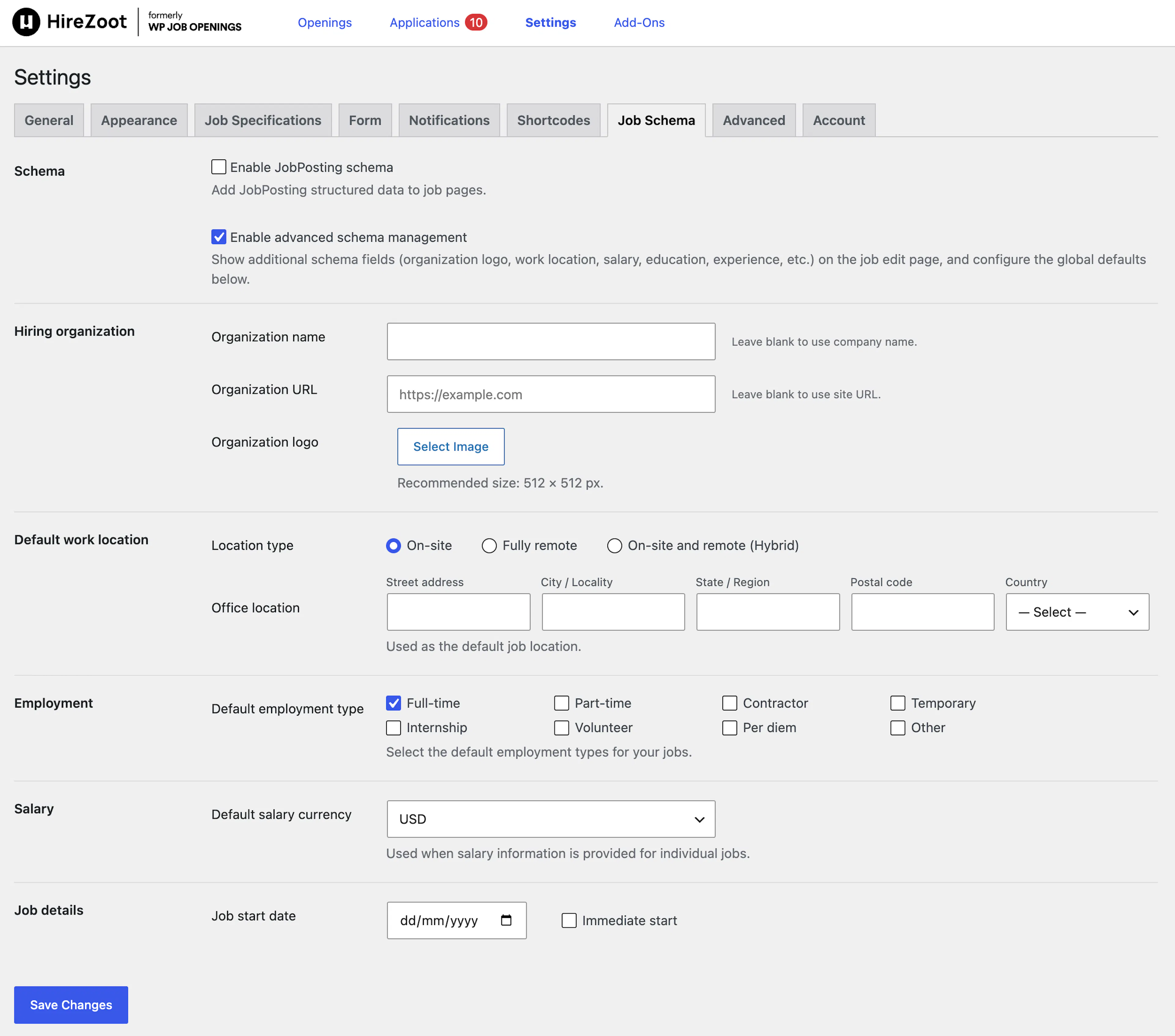
- In your WordPress admin, go to Job Openings > Settings > Job Schema.
- Confirm that Enable JobPosting schema is enabled.
- Enable Enable advanced schema management.
- Enter your global defaults.
- Select Save Changes.
Your defaults apply when you create new jobs. Existing jobs use the defaults for fields that do not have their own saved values.
Configure global defaults
Global defaults give your jobs a consistent starting point. HireZoot copies applicable defaults into new jobs and uses organization defaults when a saved job does not define its own organization values.
| Section | Field | Input | Use |
|---|---|---|---|
| Hiring organization | Organization name | Company or organization name | If blank, HireZoot falls back to Name of the Company in Settings > General. |
| Hiring organization | Organization URL | Organization website URL | If blank, HireZoot falls back to the site URL. |
| Hiring organization | Organization logo | Square logo image | A 512 × 512 px image is recommended. |
| Default work location | Location type | On-site, Fully remote, or On-site and remote (Hybrid) | Sets the default workplace arrangement. |
| Default work location | Office location | Street, city, state or region, postal code, and country | Provides the office address for on-site and hybrid jobs. |
| Remote work | Eligible applicant locations | Countries where remote applicants can work | Copied into new jobs for remote applicant eligibility. |
| Employment | Default employment type | Full-time, Part-time, Contractor, Temporary, Internship, Volunteer, Per diem, or Other | Sets the default employment type for new jobs. |
| Salary | Default salary currency | Currency code or selected currency | Preselects the currency when you enter a job salary. |
| Job details | Job start date | Start date | Copied into new jobs. |
| Job details | Immediate start | Immediate-start setting | Indicates that the job starts immediately when copied into a new job. |
After you save a job, that job retains its own schema values. Later changes to global defaults do not update saved jobs.
Add schema details to an individual job
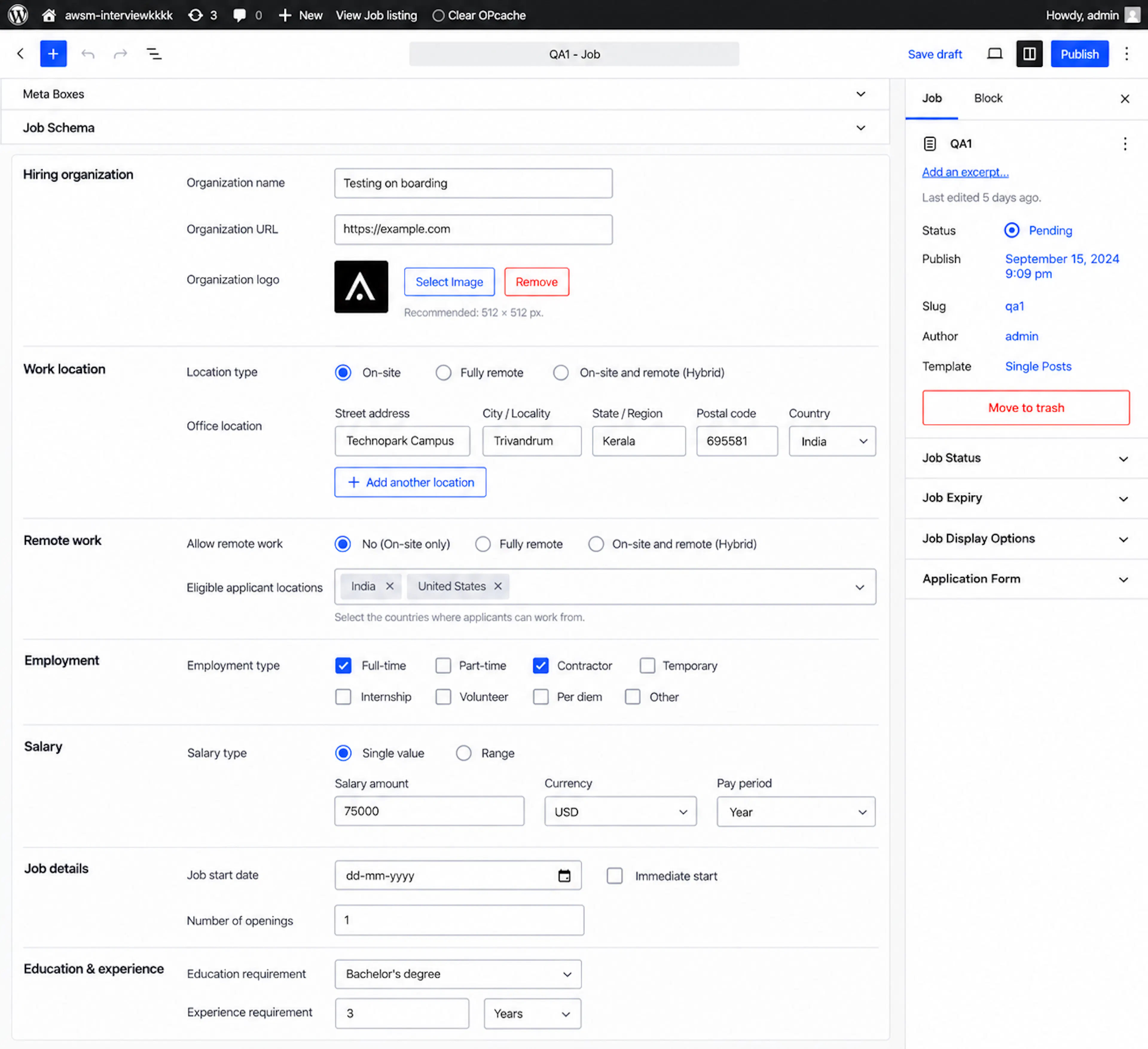
Each job edit screen includes a Job Schema box below the job description while advanced schema management is enabled. New jobs are prefilled with the relevant global defaults.
Edit the fields for the specific job, then publish or update the job as usual.
| Section | Fields | How to use |
|---|---|---|
| Hiring organization | Organization name, URL, and logo | Change these values when the job belongs to another company or brand. |
| Work location | Location type and Office location | Select the workplace arrangement and enter the office address when applicable. Select Add another location to add multiple offices. |
| Remote work | Eligible applicant locations | Enter countries where remote applicants can work. This field appears for Fully remote and Hybrid jobs. |
| Employment | Employment type | Set the employment type for structured data. This changes schema output only, not the job specifications shown for the listing. |
| Salary | Salary type, amount or minimum and maximum, currency, and pay period | Select Single value or Range. Choose an hourly, daily, weekly, monthly, or yearly pay period. |
| Job details | Start date, Immediate start, and Number of openings | Enter the expected start details and the number of available openings. HireZoot omits the openings value when it is blank. |
| Education and experience | Education requirement, Experience requirement, and unit | Select an education level and measure experience in years or months. |
Available education levels are:
- High school
- Associate degree
- Bachelor degree
- Professional certificate
- Postgraduate degree
Blank fields are omitted from the structured data, except for hiring organization fields. Hiring organization values fall back to the applicable global settings.
Understand schema value precedence
HireZoot selects each schema value using the following order:
| Schema value | Precedence and fallback |
|---|---|
| Hiring organization name | The job's Organization name, then the global organization name, then Name of the Company in Settings > General. |
| Hiring organization URL | The job's Organization URL, then the global organization URL, then the site URL. |
| Hiring organization logo | The job's logo, then the global organization logo. There is no further fallback. |
| Employment type | The job's schema employment type, then the job type from the job specifications. |
| Job location | The job's schema location, then the location from the job specifications. |
| Salary | Omitted when blank. |
| Education requirement | Omitted when blank. |
| Experience requirement | Omitted when blank. |
| Number of openings | Omitted when blank. |
Location output
The selected location type determines which location details HireZoot includes:
- On-site outputs the office address.
- Fully remote marks the job as remote or telecommute and outputs eligible applicant countries. It does not output an office address.
- On-site and remote (Hybrid) outputs the office address and remote-work details.
Avoid duplicate JobPosting schema
If another SEO plugin also adds JobPosting schema, disable one of the two sources. Duplicate schema can make it unclear which structured data search engines should use.
HireZoot notices when any of these SEO plugins are active:
- Rank Math
- Yoast SEO
- All in One SEO
- SEOPress
- The SEO Framework
The notice only means that the plugin is active. Most SEO plugins add JobPosting schema only after you configure that feature.
Use the following approach:
- If the SEO plugin does not add
JobPostingschema, keep Enable JobPosting schema enabled in HireZoot and ignore the notice. - If the SEO plugin does add
JobPostingschema, disable Enable JobPosting schema in Job Openings > Settings > Job Schema, or disable job schema in the SEO plugin. - Keep only one plugin responsible for the job's
JobPostingschema.
Validate your schema
Use Google's free Rich Results Test to inspect the schema on a published job page.
- Publish the job.
- Copy the job page URL.
- Open Google's Rich Results Test.
- Paste the URL into the test.
- Select Test URL.
- Confirm that Job posting is detected.
- Inspect the organization, location, salary, employment, and other values.
Optional-field warnings, such as a missing salary, do not prevent eligibility for Google for Jobs. Errors can prevent eligibility and should be fixed.
If the site is not public yet, inspect the page source and search for JobPosting to confirm that HireZoot outputs the structured data.