

Add New Openings
Enter Job Title and Description
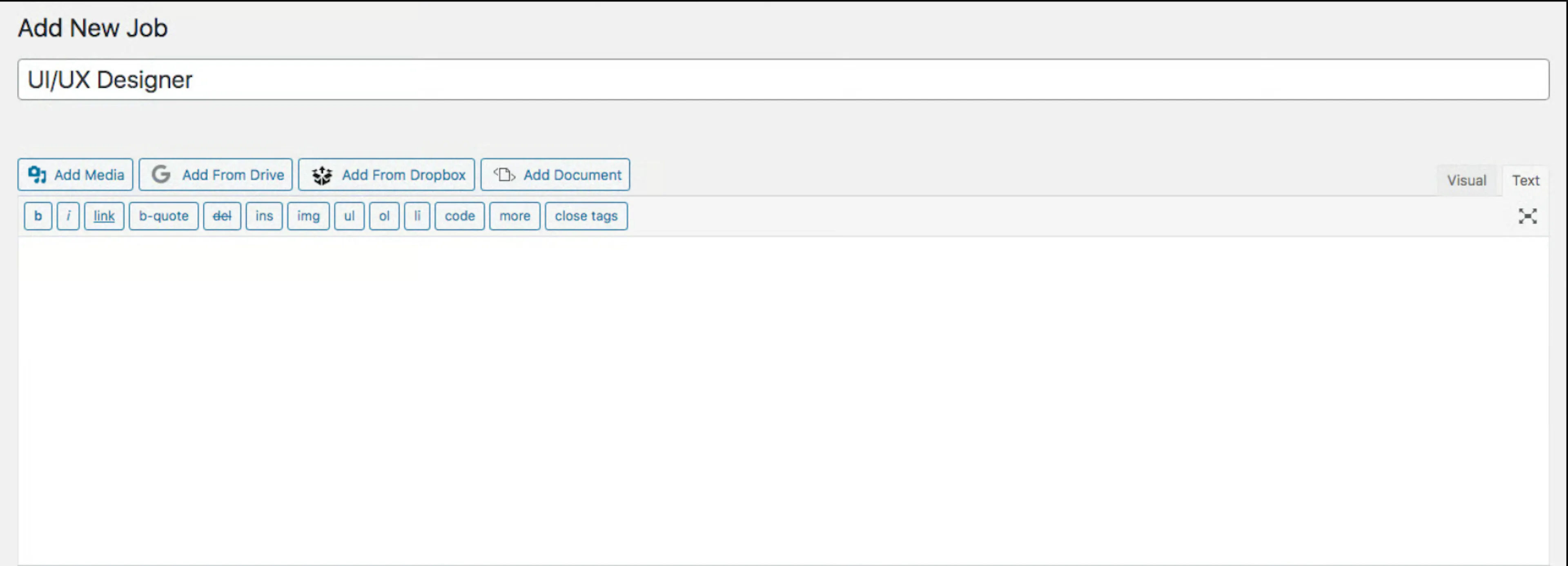
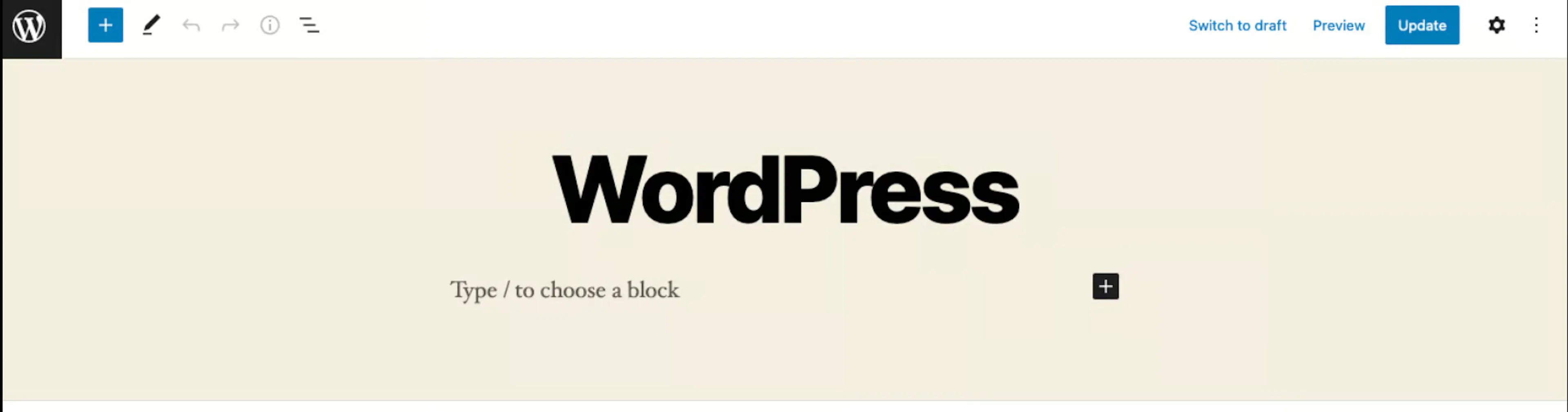
Type the title of the job and give a brief description of the job you want to post.
Add Specifications
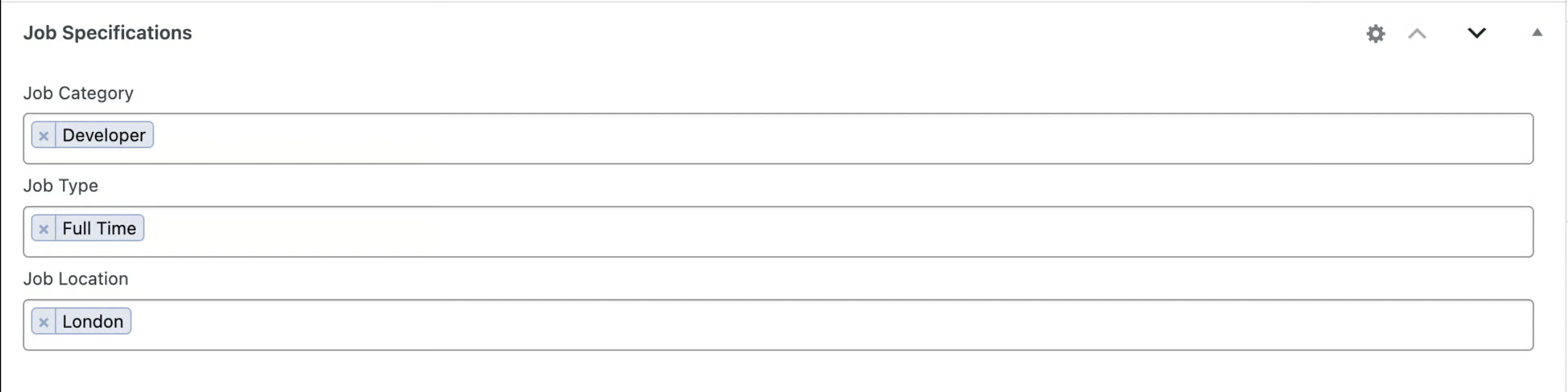
- You can add job specifications to the post and manage specifications from the settings page.
- There are 3 default job specifications:
- Job Category
- Job Type: Full Time, Part-Time, Freelance
- Job Location
- There is an option to edit the job specification; clicking the edit icon redirects to the job specification settings tab.
Add Expiry Date
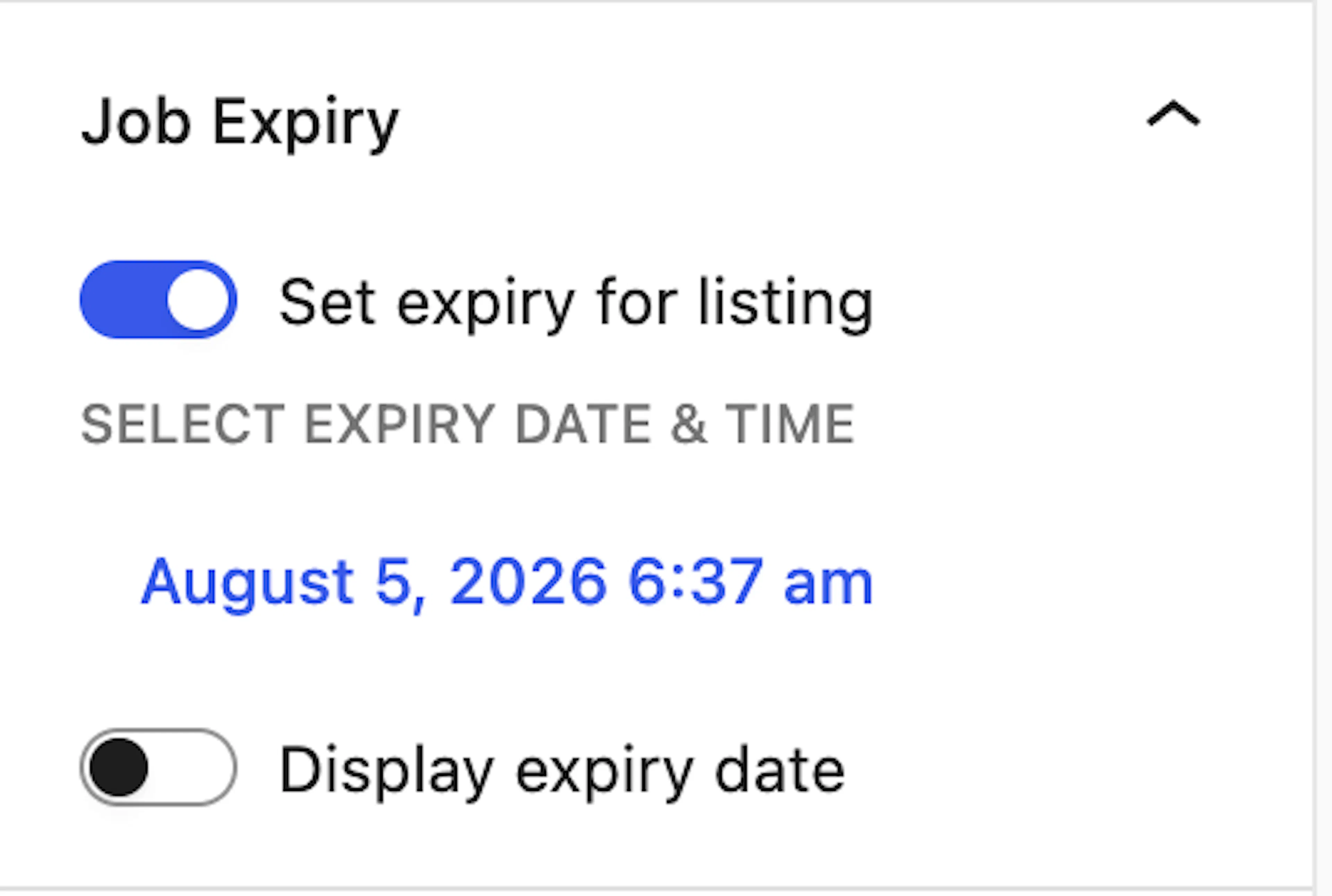
- You can give an expiry date for the job listing.
- If you want to display the expiry date to the applicant, click the "Display expiry date" option.
Make Your Job Opening Live
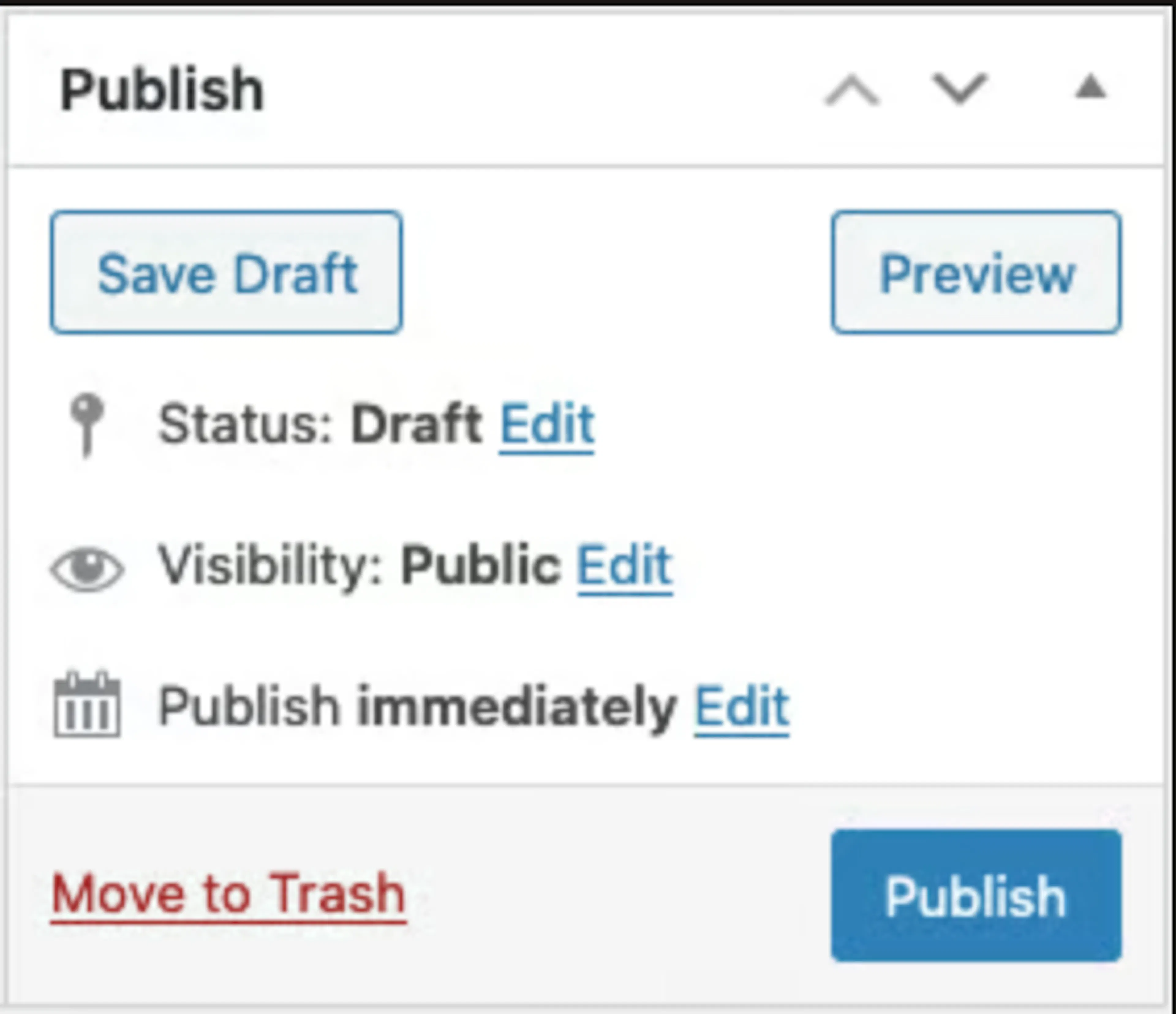
- Publish the job opening when you are ready to make it available to applicants.
Job Display Options(PRO)
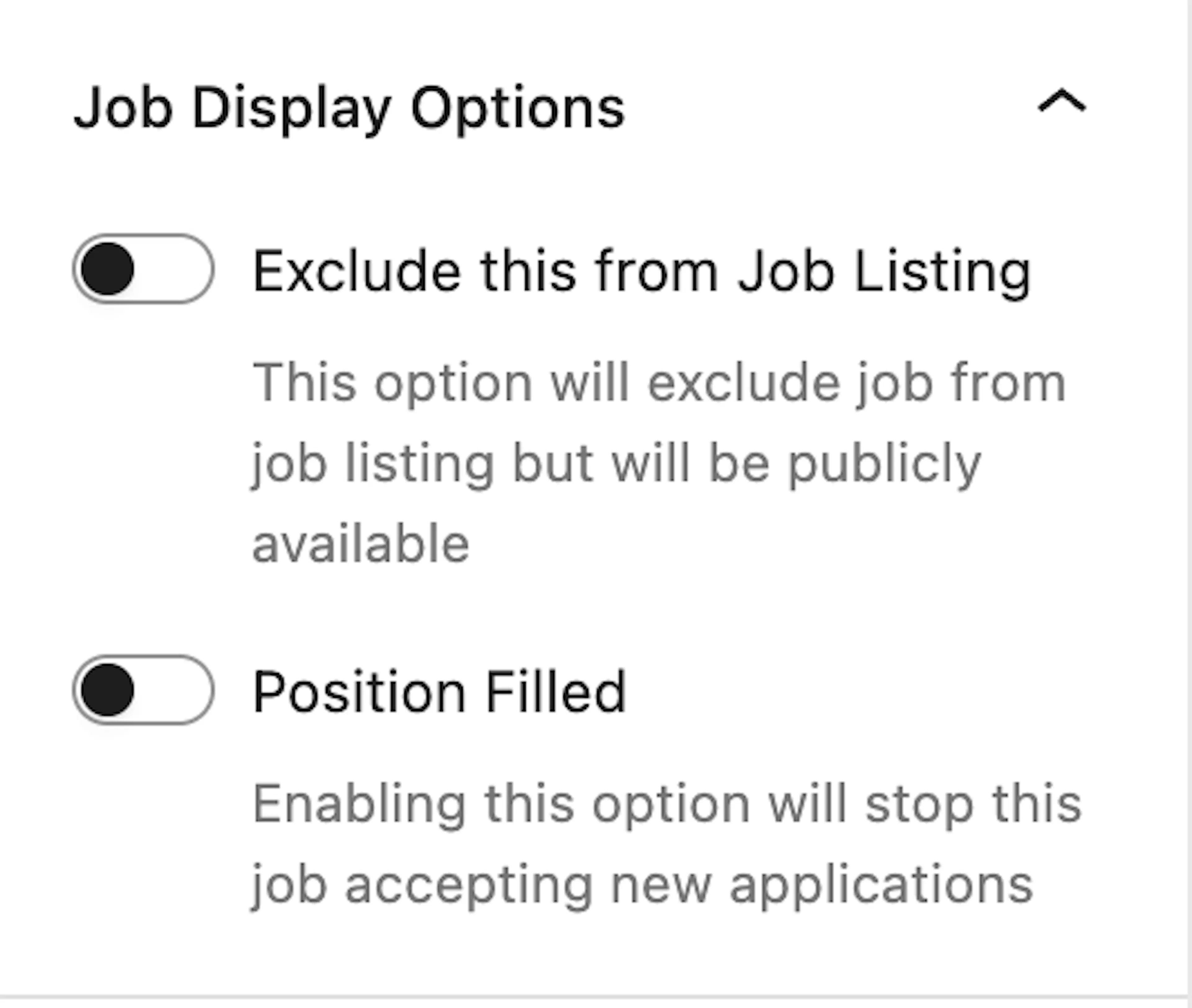
- If you want to create a form that works without job openings, you can generate the application form shortcode for a job by excluding it from the job listing.
- Go to the Job edit page and check the "Exclude this From Job Listing" option under Job Display Options. If checked, the related job will be excluded from the job listings.
- If you check the "Position Filled" checkbox, the job is filled and no longer accepting applications.
- Go to WP Job Openings Settings → Shortcodes → Form. Select a job that you excluded from listings, then click Generate Shortcode, copy the generated shortcode, and paste it into the page where you want to display the form.
Application Form(PRO)
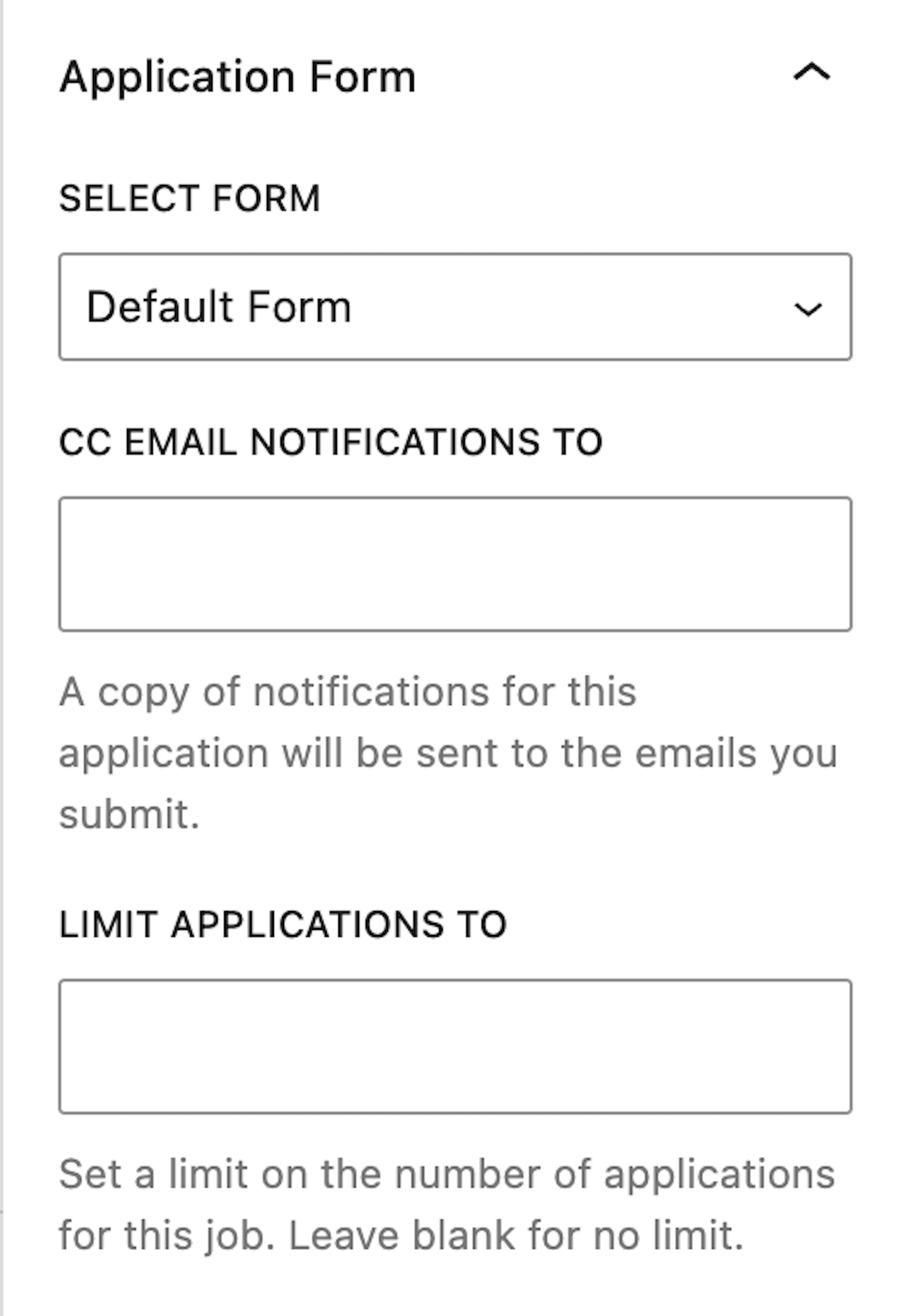
- You can enable or disable the application form for each job.
- After creating forms using the form builder, assign a specific form to each job from the Application Form options.
- You can set a limit on the number of applications for the job.
- You have the "CC Email Notifications" meta box available for each job.
- There you can set up emails.
- A copy of notifications for each job application will be sent to these emails you submit.
Was this page helpful?