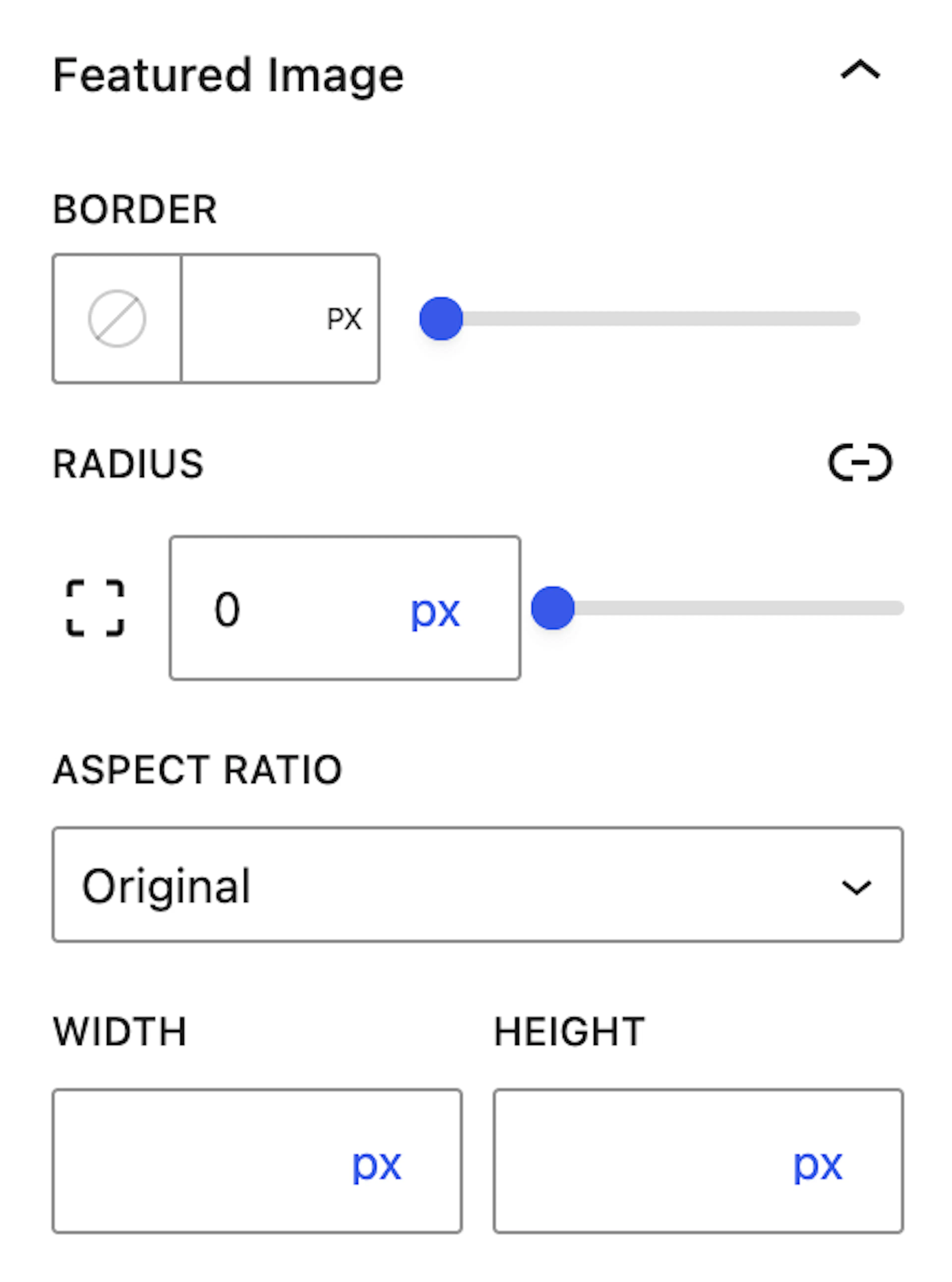
Featured Image
Show or hide featured images in job listing blocks and control their size, border, colors, and aspect ratio.
Control featured images in job listing blocks
Featured Image is a Pro feature in the Styles tab under Block Settings and Styles. Use it to enable or disable the featured image for every job listing shown in a block, then adjust how those images look across the block.
Featured Image is available to Pro users only.
Enable / Disable
Use the Featured Image toggle to show or hide the image across all job listings in the block.
When you enable it, each listing in that block displays its featured image using the same shared style settings. When you disable it, featured images are removed from all listings in that block at once.
Featured image style settings apply to all job listings in the block.
Style options
Adjust these settings to control how featured images appear in the block:
-
Border — Add and customize a border around each featured image.
-
Border Radius — Round the image corners to match the rest of your block styling.
-
Width — Set the displayed width of the featured image within the listing layout.
-
Height — Set the displayed height to keep image areas uniform.
Aspect Ratio
Set an aspect ratio to control how the featured image scales within the listing layout.
An aspect ratio helps keep images visually consistent even when source images have different original dimensions. This keeps job listings aligned more cleanly and prevents one image from appearing overly tall or wide compared to the others.