

Customizing templates of your Job Listings
Template customization is useful when you want to add some additional features to our plugin without modifying the existing source code. This is the recommended method for plugin customization instead of editing the source code. This way you can also update the plugin without any issues when feature updates are available for the plugin.
There are mainly two ways to customize the templates available in HireZoot:
-
Method 1 is useful when you want to customize the template according to your theme, or as a developer you need complete control over the template.
-
Method 2 is useful when you just want to add some additional content such as custom fields content.
1. Override Template
Templates can be full templates or partial templates. If the customization needs to be done in a partial template, then there is no need to override the full template. You can use partial template overriding.
The plugin template files are available from the wp-content/plugins/wp-job-openings/inc/templates/ directory.
1.a. Override Job Listing Template
There are mainly two template files that control the job listing template: job-openings-view.php and job-openings/main.php. The first one is the full template file and the second is the partial template file.
You can override these templates by following the steps below:
-
Go to your current theme folder (we recommend a child theme) and create a folder named
hirezoot(if it doesn't exist). For example, if your main theme is Twenty Twenty, create a child theme (twentytwenty-child). Instructions for creating a child theme are available here. Then, inside thetwentytwenty-childfolder, add thehirezootfolder. -
If you only need to change the full template file, copy
job-openings-view.phpfrom the plugin template directory and paste it into thehirezootfolder from step 1. -
If you only need to change the partial template file, create a subfolder
job-openingsinside thehirezootdirectory from step 1. The directory will now bewp-content/themes/twentytwenty-child/hirezoot/job-openings/. -
Copy the
main.phptemplate from the plugin template directory and paste it into the folder from step 3. -
After that, you can start customizing the template in the child theme.
1.b. Override Job Detail Page Template
-
Go to HireZoot Settings → Appearance → Job Detail Page. Select Plugin Template as the Job Detail Page template, then click Save Changes.
-
Go to your current theme folder (we recommend a child theme) and create a folder named
hirezoot(if it doesn't exist). See the child theme instructions here. -
Copy the
single-job.phptemplate from the WP Job Openings plugin template directory (wp-content/plugins/hirezoot/inc/templates/single-job.php) and paste it into the directory from step 2. After that, you can start customizing the template.
You can follow the above steps for customizing all other templates. You can even customize the form layouts!
2. Use Hooks
Hooks are a way for one piece of code to interact with or modify another piece of code at specific, pre-defined spots. Learn more about hooks here.
There are many hooks available in the HireZoot plugin for template customization. If you just want to add some additional content such as custom field content in the plugin template, there is no need to override the entire template if the hooks are available within the template.
Example:
-
Requirements: Knowledge in creating custom fields with the ACF Plugin.
-
Imagine you have created a custom field named Company Name (
company_name) in ACF.
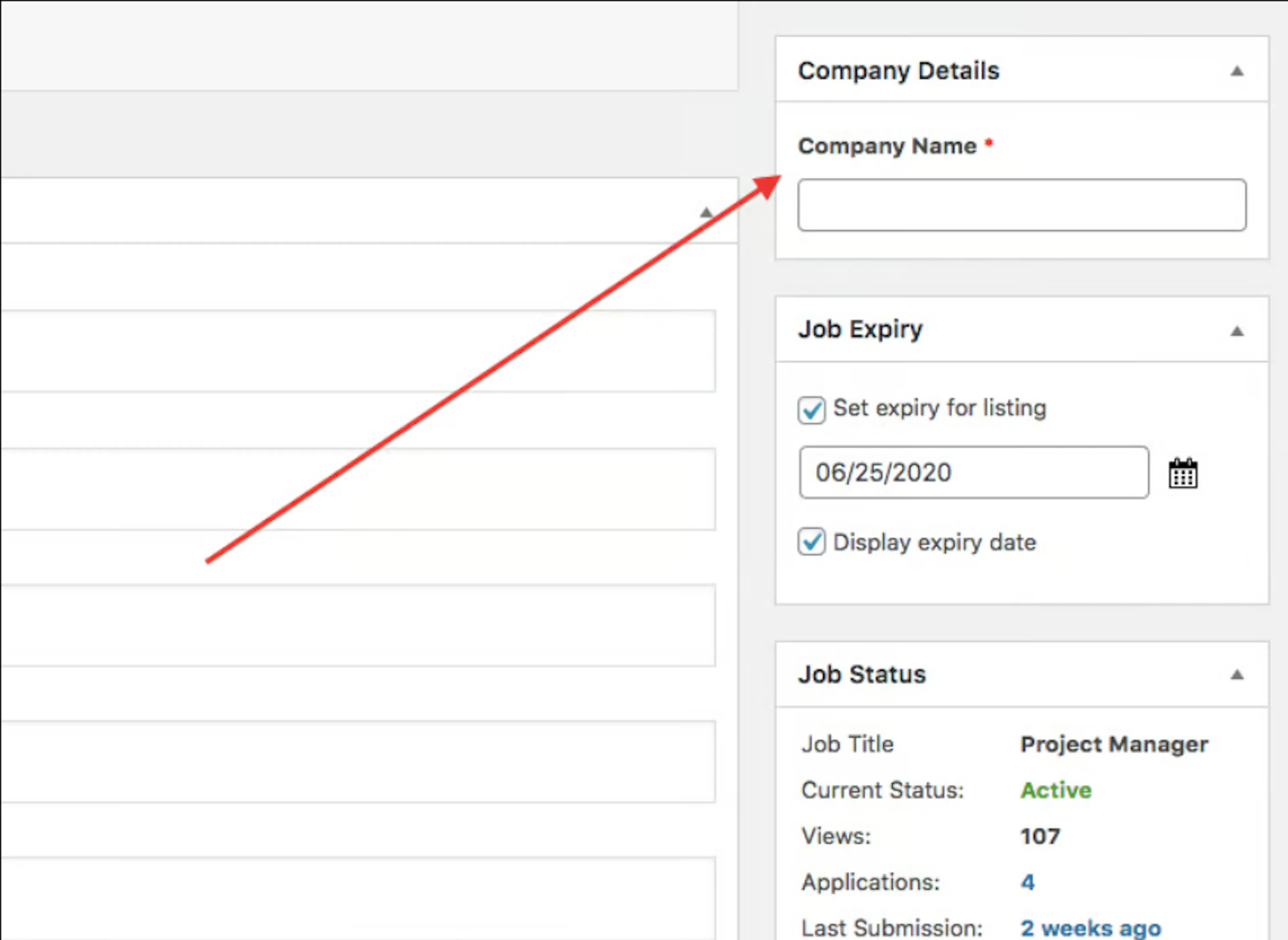
If you want this value to be displayed in job listing after the job title, then, you can easily use the below snippet in your theme functions.php file. We recommend the child theme’s functions.php file.
/**
* Add company name to job listing below the job title.
*/
function awsm_jobs_company_name_in_listing() {
    $company_name = get_field( 'company_name' );
    if ( ! empty( $company_name ) ) {
        printf( '%s', esc_html( $company_name ) );
    }
}
add_action( 'after_awsm_jobs_listing_title', 'awsm_jobs_company_name_in_listing' );
Result:
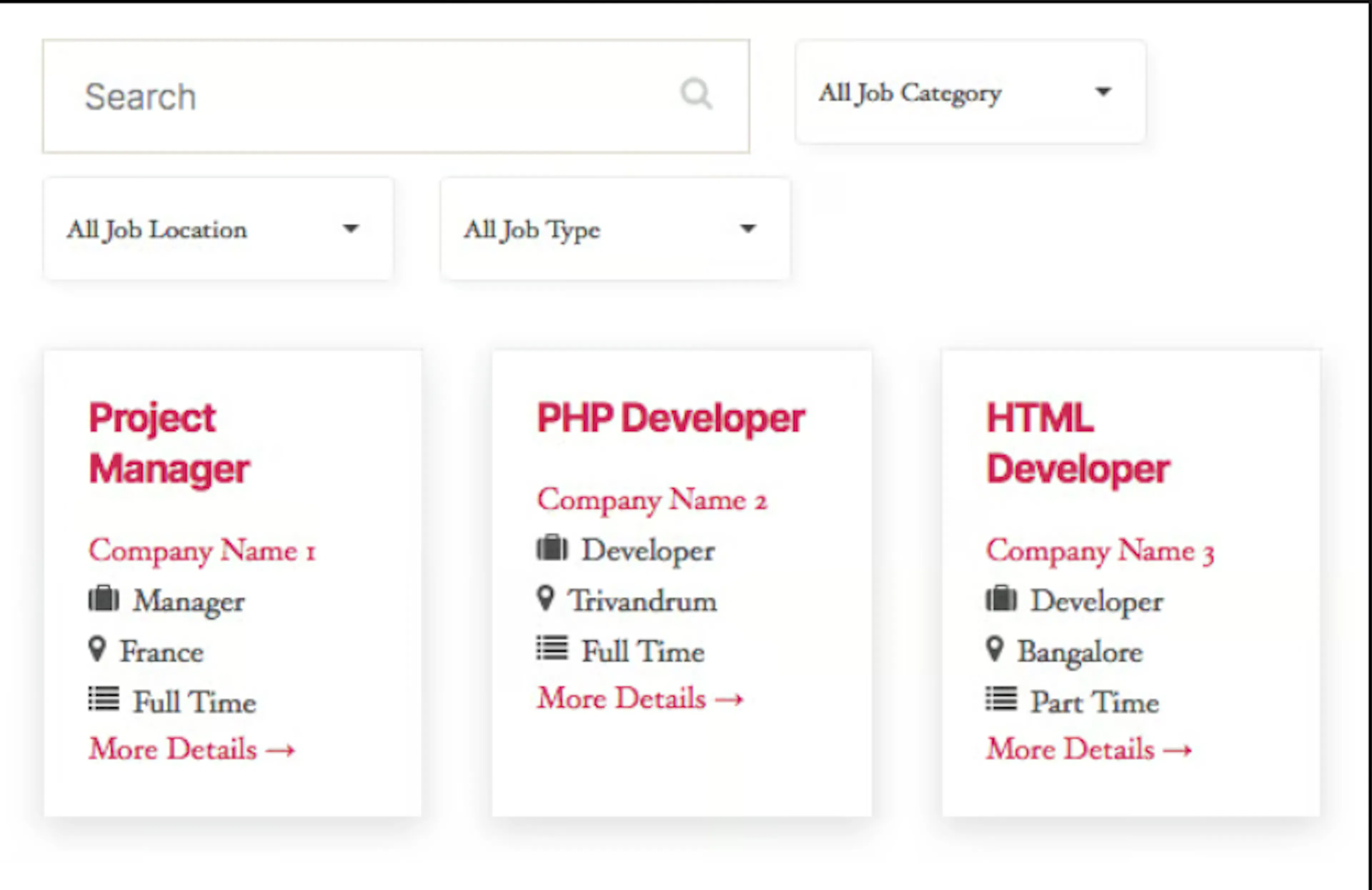
In the same way, you can use other hooks available within the template files to add additional features.